How do I start a vacation?+
Sign in, then tap “New vacation” on your dashboard. Give it a name and date range and pick which meals you're planning (breakfast, lunch, dinner — any combo). You'll get a share link, QR code, and short share code to send to everyone.
How do I invite people to the trip?+
Open the vacation → More tab → Share. You can copy the link, scan the QR code, use your phone's share sheet, or read out the short share code. Anyone who opens the link and signs in joins the trip automatically — no manual approval needed. The organizer can rotate the link any time to invalidate old invites.
How do guests work — can I add my whole family?+
Yes. From the More tab, add a guest for each person who isn't signing in themselves — kids, a partner, a visiting friend. They count toward headcounts and attendance. By default they're exempt from cooking and cleanup, but each guest has a “Can have duties” toggle if you want them in the rotation (e.g., a teenager who can help cook).
How do I exempt a grown-up from cooking or cleanup?+
Members can set their own exemptions from the More tab — exempt yourself from all duties, or just from specific slots like dinner cleanup or breakfast prep. Auto-fill respects these, but you can still volunteer manually if you change your mind.
Can I mark my kids absent from just one meal?+
Yes. On the Attendance tab tap any meal cell to toggle a person in or out. There are also bulk shortcuts to mark a whole day, a whole meal type across the trip, or a single person in or out everywhere — handy when someone arrives late or leaves early.
How does attendance tracking work?+
Everyone defaults to attending every meal. You manage your own attendance and your own guests' attendance from the Attendance tab. Meal cards, grocery planning, the duty fairness math, and the printed schedule all use the live headcount.
How does duty scheduling work?+
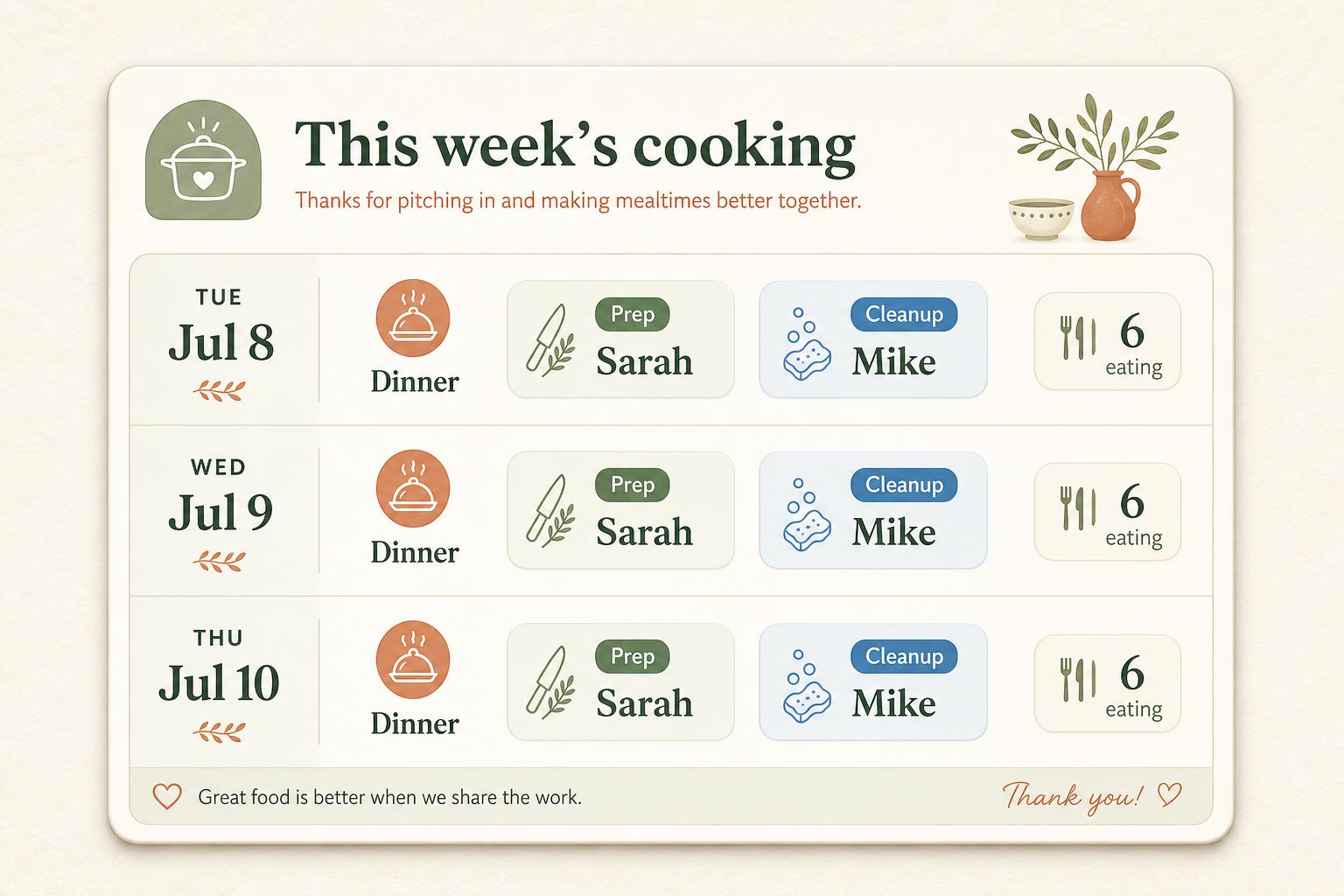
Anyone can sign up for prep or cleanup on a meal, or tap an empty slot to assign someone. The organizer can tap “Auto-fill” to distribute fairly using who's present, who's exempt, and who has done the fewest turns so far. There's also a fairness tally and a “Rebalance” button to even things out mid-trip.
What if I'm assigned a duty I can't do?+
Tap your assignment → “Request swap”. Other members see the open swap and can accept to take it over. You can cancel an open swap any time before someone accepts.
What is Cook mode?+
When it's your turn to cook, tap “Start cooking” from the Today tab. You get a full-screen view with the recipe, ingredient checklist, and allergy warnings — and your screen stays awake. When you're done, save how many leftover servings there are and tap “Ping cleanup” to notify the cleanup crew.
How do leftovers work?+
After cooking, save the number of leftover servings. Leftovers show up on the Today tab so anyone can mark them eaten, and they appear as an insertion option on the Meals tab so you can plan a meal around them.
How does the shared grocery list work?+
Add items with a quantity — anyone in the group sees them instantly. Items auto-sort into aisle sections. Tap “Shopping mode” to hide checked items, keep your screen awake, and see who else is shopping at the same time. From the Meals tab, “Send to grocery list” pushes a meal's ingredients straight to the list, automatically skipping anything already in the pantry.
What is the pantry?+
The pantry (on the Groceries tab) is your list of staples you already have at the house — salt, oil, pasta, whatever. When you push meal ingredients to the grocery list, anything in the pantry is skipped so you don't buy it twice. You can move items between the list and pantry any time.
How do I handle allergies and dietary restrictions?+
From the More tab, each member can tag their structured allergens (peanuts, dairy, etc.) and diets (vegetarian, gluten-free, etc.), plus add free-text notes for the cook. The app then shows inline warnings on any meal whose ingredients clash with someone present. For extra-critical info, post a note on the Comments tab and mark it as an Allergy/Safety note — it pins to the Today banner and prints in bold.
What's the Comments / Group notes tab for?+
Group notes are where you leave messages for everyone — “restaurant booked for Friday,” “Grandma's bringing dessert,” etc. Anyone can reply. Pin a note to keep it at the top and on the Today banner, or flag it as Allergy/Safety to make it impossible to miss.
Can I track shared expenses?+
Yes — the organizer can turn on Cost Sharing on the Expenses tab. Choose who's in the split, then log receipts (with category, photo, who paid, who it's split between). The app shows everyone's balance and the minimum number of payments to settle up. Your personal balance also appears on the Today tab.
Can I get reminders?+
Yes. From the More tab → Notifications, turn on a morning digest (today's meals + duties) and an evening nudge (tomorrow's unassigned slots and grocery gaps), each at the time you choose. You can mute everything until midnight when you need a break. Cleanup people also get a ping when the cook hits “Done.”
Can I print the schedule?+
Yes. Open Print from the More tab or the Today header. “Schedule only” gives you a clean fridge-ready meal schedule with headcounts and duties. “Print all” adds dietary notes, pinned/allergy notes, and the grocery list.
Can I reuse a past trip as a template?+
Yes. Open the trip you want to copy → More tab → “Duplicate trip”. Pick a new name and start date — meals and ingredients always come along (with dates shifted). You can also choose to copy guests, member dietary settings and exemptions, the grocery list, and the pantry. Duties and attendance always start fresh.
How do I leave a trip — or delete one?+
Anyone can leave a vacation from the More tab; the trip stays for everyone else and you can rejoin via the link. Only the organizer can delete the whole vacation, and deletion is permanent.
Is it really free?+
Yes — Group Meal Planner is free to use for your group's vacations.